If you want to convert eBooks to audiobooks without recording every chapter yourself, AI can prepare the text for narration and generate the spoken audio. MyNarratorAI turns a supported book file into chapters, processes the text for either narrator-only or multi-voice delivery, and shows progress as the audiobook is created.
This guide covers the current MyNarratorAI file-upload workflow and stays with behavior verified in the current product. Before uploading a book, make sure you own the text or have permission to create an audio version of it.
What eBook Files Does MyNarratorAI Support?
The standard Create Audiobook upload screen accepts four source formats:
- EPUB for reflowable eBooks with a defined reading order and chapter structure.
- PDF for documents whose text is organized by physical pages.
- TXT for plain-text books.
- MOBI for compatible Mobipocket eBook files.
These are the supported upload extensions in the current interface. A different extension is not accepted simply because another reading app can open it. If your source uses another format, prepare a supported copy before starting. The quality of the source still matters: correct chapter order, clean headings, readable text, and sensible paragraph breaks give the processing pipeline clearer material to work with.
How to Convert eBooks to Audiobooks With AI: Step by Step
- Check the source file. Open the book in a reader and confirm that the chapters appear in the intended order. Remove duplicate front matter or notes that you do not want narrated. For PDFs, check for repeated headers, footers, page labels, columns, or other layout elements that could interrupt the reading order.
- Open Create Audiobook. Sign in to MyNarratorAI and open the upload flow. Enter the required book title, then select the book language. The current screen offers English and Spanish and uses that choice to filter the available narrators.
- Choose how voices are assigned. Under Voice Actors Assignment, select Automatic, Full Cast, or Narrator Only. Then review the selected narrator and use Change if you want another compatible narrator.
- Select the book file. In the Book File section, choose Select File and pick an EPUB, PDF, TXT, or MOBI file. The page displays the selected filename so you can confirm the correct source before submitting it.
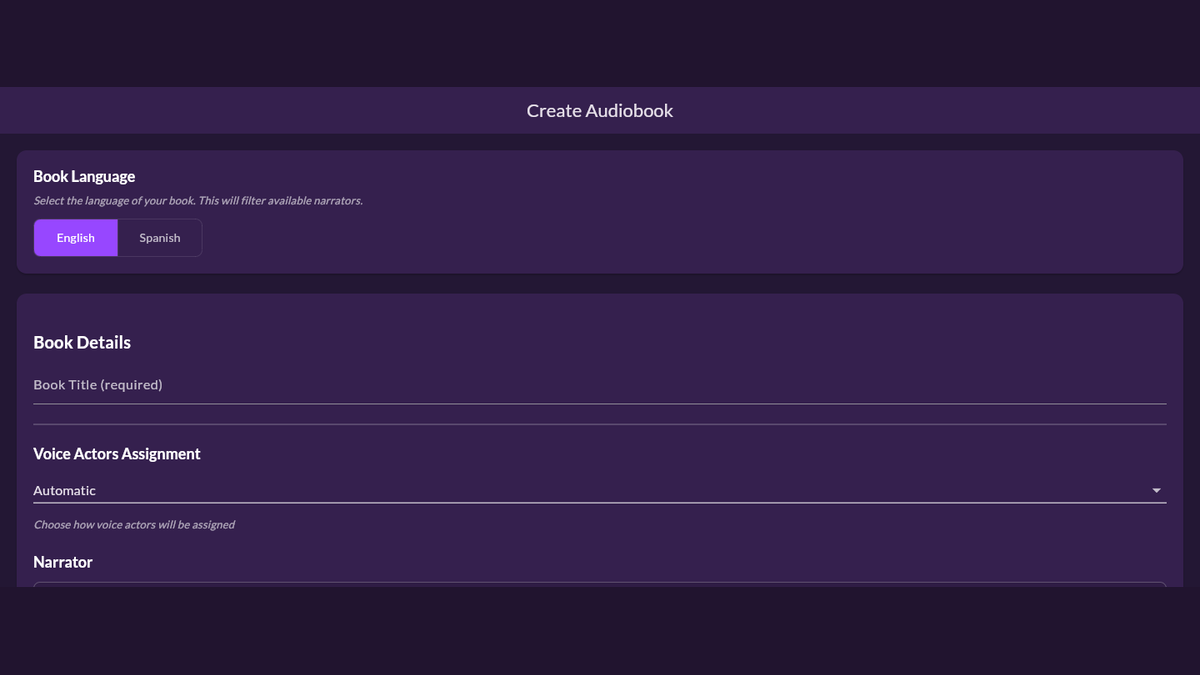
- Create the audiobook. Select Create Audiobook. The interface first reports the file upload, then shows that the book is being set up or queued for processing. When setup is ready, it opens the book page.
- Follow chapter progress. Use the book page to see processing progress and the available chapters. Open completed audio and listen closely to an early chapter before treating the whole conversion as reviewed.
Automatic, Full Cast, or Narrator Only?
The voice-assignment setting changes how the book is prepared for speech. It is worth choosing deliberately before the upload begins.
- Automatic lets the book-analysis stage decide whether the text should use the full-cast pipeline.
- Full Cast explicitly requests character discovery and separate character voice assignments alongside the narrator. This is the clearest choice for dialogue-heavy fiction when you want distinct speakers.
- Narrator Only keeps the audiobook on the single-narrator path. It is a straightforward option for essays, reference material, or any book where one continuous reading voice is preferable.
The narrator is selected separately from the assignment mode. MyNarratorAI filters narrator choices by the language selected on the form, which helps keep the upload settings internally consistent.
What Happens After You Upload the eBook?
The upload is the beginning of a queued conversion process, not an instant file-format swap. MyNarratorAI validates the source, creates the book record, and extracts its readable structure. EPUB, PDF, TXT, and MOBI sources then enter the chapter-processing workflow.
For books using the full-cast path, the script pipeline identifies characters and dialogue before voice assignment. The audio pipeline renders the prepared chapters with the selected narrator and any valid character assignments. The product is designed to keep a character’s voice consistent across the book rather than choosing a new voice independently in each chapter.
Because the work is processed by chapter, the book page is the useful place to monitor it. A queue position may appear during setup, and chapter availability updates as processing advances. This also gives you a concrete place to check the result instead of assuming a successful upload means every source detail was interpreted correctly.
Tips for a Cleaner Audiobook Conversion
- Use the final manuscript. Fix duplicated passages, placeholder text, and broken chapter headings before upload.
- Select the real source language. Narrator availability and downstream language handling depend on the English or Spanish choice.
- Match the voice mode to the book. Use Narrator Only when one reader is intentional, Full Cast when separate dialogue voices are important, or Automatic when you want the analysis stage to decide.
- Review an early completed chapter. Listen for unexpected headings, page furniture, character attribution, and names that need attention.
- Keep the original source. If the extracted structure is wrong, correcting the source and creating a fresh conversion is safer than trying to compensate for a broken file later.
Frequently Asked Questions
Can MyNarratorAI convert every eBook format?
No. The current standard upload flow accepts EPUB, PDF, TXT, and MOBI. Prepare a supported source file if your book is stored in another format.
Can an audiobook use different voices for different characters?
Yes. Choose Full Cast to request separate character voice assignments, or Automatic to let the analysis stage determine whether full-cast processing applies. Narrator Only uses the single-narrator path.
Do I need to keep the browser open while every chapter is processed?
The conversion runs through queued server-side processing after the upload is accepted. Return to the book page to check progress and available chapter audio.
Ready to begin? Open MyNarratorAI’s Create Audiobook page, choose the settings that match your book, and upload a supported file you are authorized to use.
Related Articles
- EPUB to Audio: Complete Conversion Guide
- AI Audiobook Generator: Turn Any Book Into Full-Cast Audio
- Create Custom Voice Actors for Full-Cast AI Audiobooks
Originally published July 2, 2025; updated August 23, 2026.