Turning an EPUB to audio is more than asking text-to-speech software to read every line. A useful audiobook needs sensible chapter structure, a narrator that fits the book, understandable dialogue, and a review process for names or passages that do not sound right on the first render. MyNarratorAI brings those steps into one workflow: upload the source, choose how voices should be assigned, create the audiobook, listen, and—when Create Version is available to your account—make targeted corrections in a new version.
This guide focuses on a standard EPUB novel or nonfiction book. The same upload screen currently accepts PDF, TXT, and MOBI files as well, although each source format has different structural strengths. EPUB is often the most convenient starting point because it can contain explicit chapters and reflowable text.
Before You Convert an EPUB to Audio
Confirm that you can use the book
Use a book you wrote, a work in the public domain, or material for which you have the necessary permission or license. Buying an ebook does not necessarily grant the right to reproduce or distribute an audiobook adaptation. Copyright and public-domain rules vary by jurisdiction, so this is a practical reminder rather than legal advice; ask a qualified professional when the rights are unclear.
If the ebook is protected by digital rights management (DRM), obtain an authorized, uploadable source from the rights holder or publisher. Do not bypass DRM. For a low-risk practice project, start with a title whose status you have independently verified; our guide to finding public-domain books explains what to check.
Inspect the source file
Open the EPUB in an ebook reader before uploading it. Check that chapters appear in the correct order, headings are meaningful, and unusual characters display properly. Remove accidental duplicate front matter or unrelated promotional pages if you control the source. A well-structured EPUB gives the conversion pipeline clearer material to work with, but clean formatting is not a guarantee of perfect narration.
EPUB to Audio: The MyNarratorAI Workflow
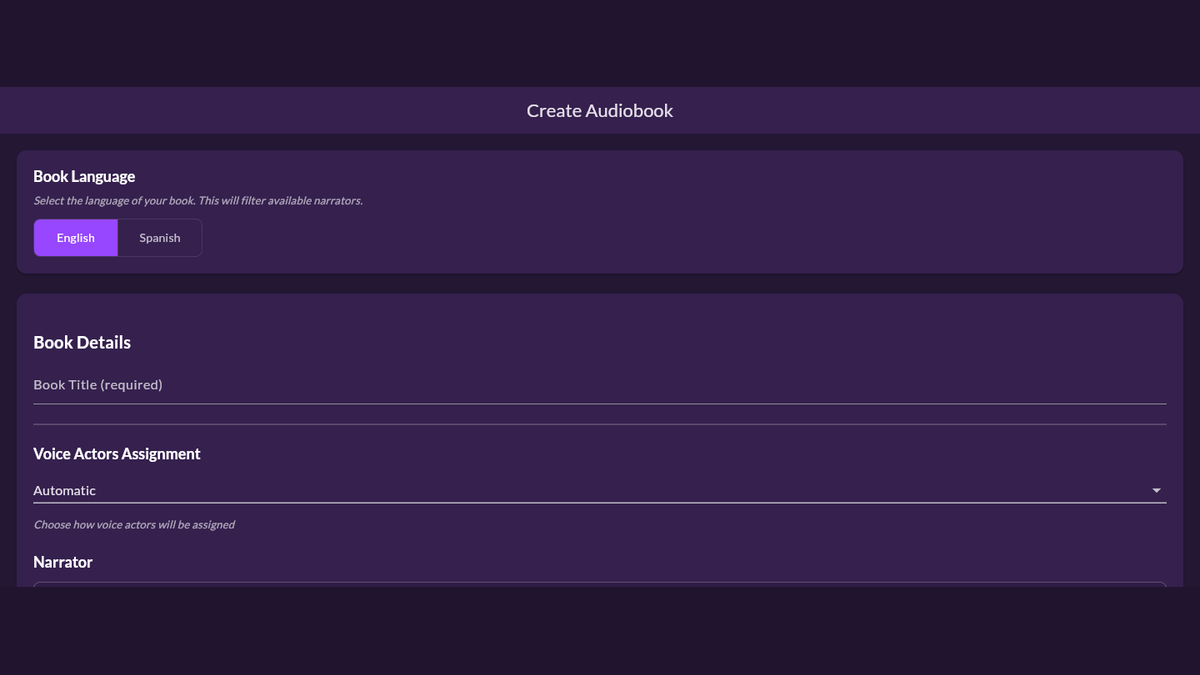
- Open the Create Audiobook page. Sign in and go to Upload Book.
- Select the book language. The current full audiobook workflow supports English and Spanish. Language selection filters the narrator roster to compatible voices. For Spanish, eligible accounts may also see a choice between neutral and Argentinian Spanish.
- Add the title. Enter a clear book title so the project is easy to recognize in your library.
- Choose a voice-assignment mode. Select Automatic, Full Cast, or Narrator Only. Full Cast is the direct choice when you want dialogue routed to distinct character voices; Narrator Only keeps the performance with one narrator.
- Choose the primary narrator. The narrator picker is filtered by the language and, where applicable, accent selected for the book.
- Select the EPUB and create the audiobook. Confirm the settings, choose the file, and use Create Audiobook. Processing continues through ingestion, script preparation, voice assignment, and audio generation.
Some accounts also expose optional creation settings such as character images, scene images, sound effects, or music cues. Availability depends on feature access, and none of those extras replaces reviewing the spoken book itself. Start with the choices that materially affect narration: language, assignment mode, and narrator.
What Full-Cast Conversion Does
In a full-cast project, MyNarratorAI processes the book as a script-oriented audiobook rather than a single uninterrupted speech file. It identifies narration and dialogue, builds character information, and assigns compatible voices. That can make conversations easier to follow and give recurring characters a consistent audible identity. The broader full-cast AI audiobook guide explains that workflow in more detail.
AI interpretation is not automatically perfect. Ambiguous dialogue can be assigned to the wrong speaker, a name can be pronounced incorrectly, or a selected voice may not suit your intent. Complex typography, footnotes, tables, and image-dependent passages can also require extra review. Treat the first completed version as a production draft to listen to, not as proof that every line is ready.
Review the Audiobook Before You Rely on It
Listen in chapter order and keep notes with the chapter and approximate location of each issue. Pay particular attention to:
- character names, places, acronyms, and specialist terminology;
- dialogue where the speaker could be ambiguous on the page;
- voice continuity for characters who return in later chapters;
- chapter boundaries, front matter, and unusually formatted passages;
- sections where a visual, table, or footnote carries meaning that speech alone may not convey.
Use both headphones and ordinary speakers for a practical review. You are listening for intelligibility and continuity, not merely whether an audio file exists. If the book will be shared with others, a separate human review is valuable because someone unfamiliar with the source may notice confusing passages that the author reads past.
Correct Problems Without Re-uploading the EPUB
When Create Version is available to your account and you find a problem, create a corrected version instead of rebuilding the project from scratch. Its controls can carry focused changes such as narrator or character voice updates, dialogue and text corrections, and pronunciation replacements. The original version remains available for comparison while the correction is generated into a new one.
For a mispronounced word, select it from the audiobook’s synchronized text, enter the spelling that produces the intended sound, preview the replacement, and review the proposed version change. You can choose where the correction should begin, which matters when a name appears throughout later chapters. For voice or dialogue issues, open Create Version, record only the changes you need, review the summary, and then generate that version.
For a step-by-step correction guide, read how to fix an AI audiobook without starting over.
Corrections still need a listening pass. A phonetic spelling that fixes one sentence may sound different in another context, and changing a voice can affect more than the line that first drew your attention. Compare the relevant passages in the new version before considering the issue resolved. If you want to create a reusable voice from an authorized recording, see the guide to custom voice actors for full-cast audiobooks.
A Practical EPUB-to-Audio Checklist
- Verify your rights to use the text and obtain a lawful, DRM-free source.
- Open the EPUB and inspect chapter order, headings, and special characters.
- Select the correct language before choosing a narrator.
- Choose Automatic, Full Cast, or Narrator Only based on the listening experience you want.
- Listen to every chapter and record exact locations for issues.
- Use a new version for targeted voice, dialogue, text, or pronunciation corrections.
- Review each corrected passage again rather than assuming regeneration fixed it.
Ready to test the workflow with a book you are authorized to use? Start an EPUB to audio project in MyNarratorAI, choose the simplest suitable voice setup, and plan time for a real listening review.
Related Articles
- AI Audiobook Generator: Turn Any Book Into Full-Cast Audio
- Create Custom Voice Actors for Full-Cast AI Audiobooks
- Public Domain Audiobooks: Find Classics and Create Your Own
- How to Convert eBooks to Audiobooks With AI
Originally published July 3, 2025; updated August 23, 2026.