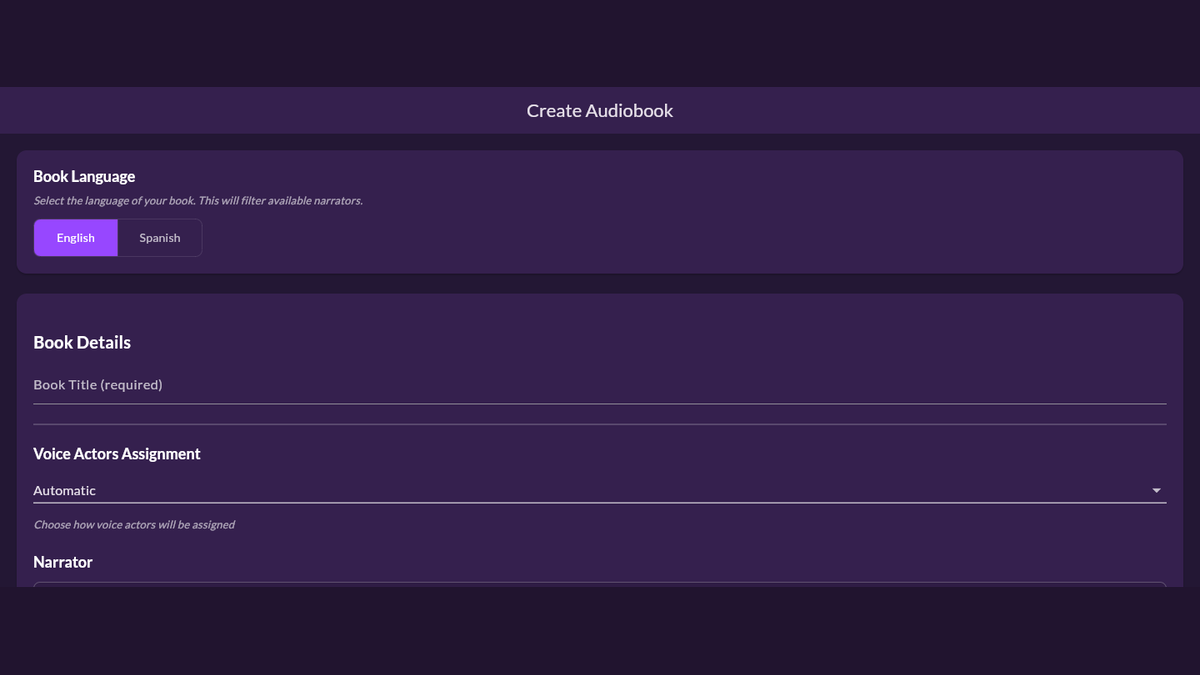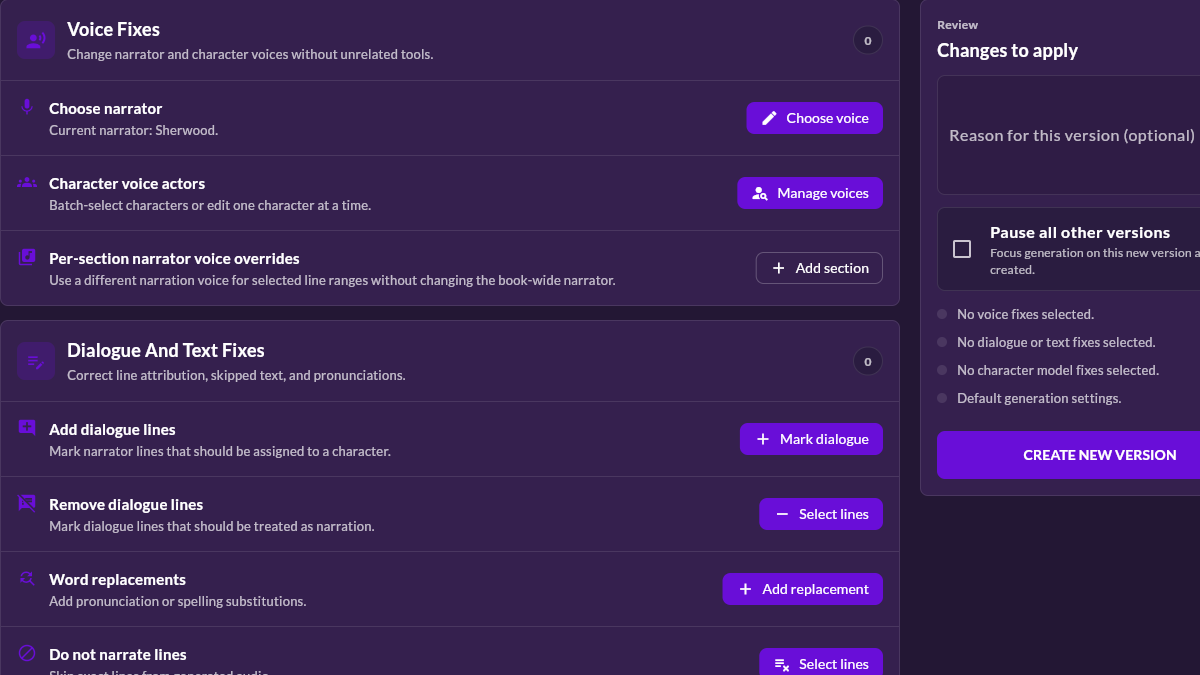
Author: MyNarratorAI Editorial Team

  • How to Fix an AI Audiobook Without Starting Over

    How to Fix an AI Audiobook Without Starting Over

    If a generated chapter says a name incorrectly or gives a line to the wrong character, you should not have to rebuild every creative choice from scratch. When Create Version is available to your account, MyNarratorAI lets you fix an AI audiobook with targeted pronunciation, dialogue, character, or voice changes.

    The important word is version. A correction does not destructively patch a few milliseconds inside the old audio. It records the changes, keeps the original version available, and regenerates the selected chapter range. Within those chapters, unchanged audio chunks can be reused when possible.

    Here is how to diagnose the problem, choose the smallest appropriate control, and review the result.

    First, identify what is actually wrong

    Similar-sounding problems can require different fixes. Before changing a setting, listen to the line in context and classify it:

    • Pronunciation: the correct voice says a name or term incorrectly.
    • Dialogue assignment: the words are right, but the wrong character speaks them.
    • Voice casting: the character is correct, but their assigned voice is a poor fit.
    • Character identity: two names for one character were treated as separate people, or two distinct characters were combined.
    • Narration: dialogue should be plain narration, or—on Ultimate and Admin accounts—a particular section needs a different narrator.
    • Pacing: one character needs a faster or slower effective narration speed.

    Choosing the matching control matters. Respelling a name will not repair a wrong speaker, and changing a voice will not repair a bad character merge.
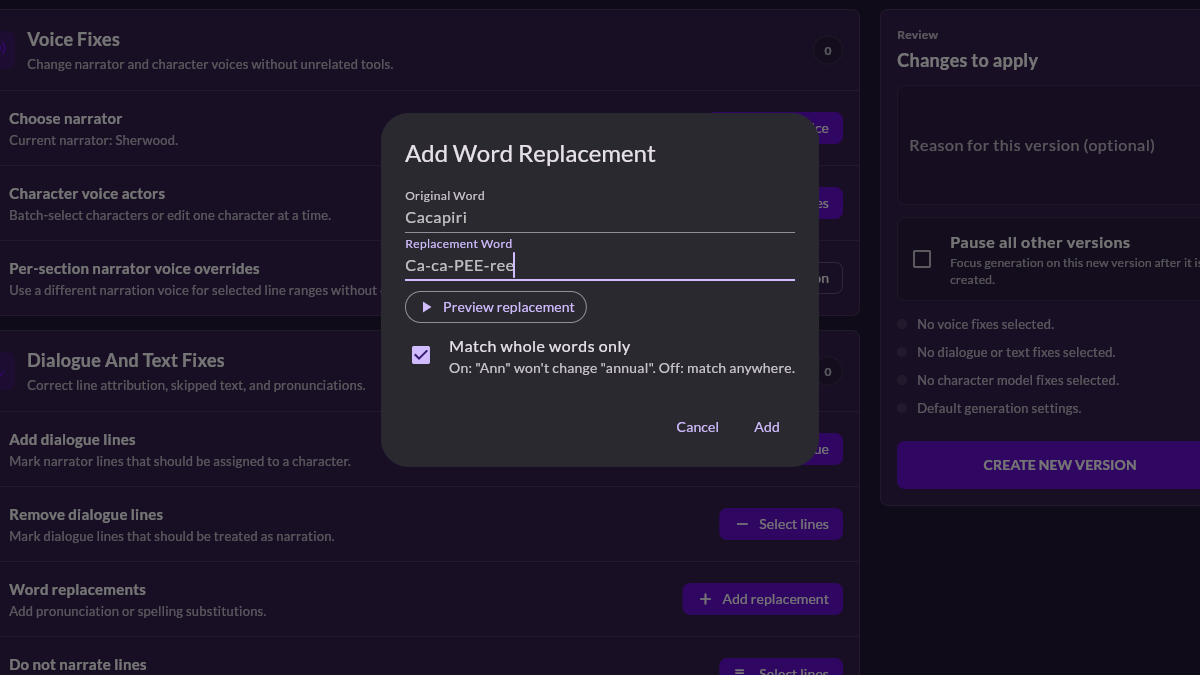
    Fix an AI audiobook in MyNarratorAI with a Cacapiri pronunciation replacement, preview control, and whole-word matching
    When available to your account, Create Version lets you preview a speakable replacement before generating corrected audio.

    How to fix an AI audiobook pronunciation

    For a mispronounced word, start in the player’s full chapter text:

    1. Select the word in a single line.
    2. Choose Fix pronunciation.
    3. Enter a speakable respelling in the “say it as” field.
    4. Use Preview to hear the replacement in the line’s current voice.
    5. Compare it with Hear original, adjust, and preview again.
    6. Continue to Review version when it sounds right.

    A stressed-syllable respelling such as Ca-ca-PEE-ree for “Cacapiri” can be more useful to a speech engine than a dictionary definition. The replacement is applied as a whole word by default, so a short name should not silently change the middle of an unrelated longer word.

    The review screen estimates where the selected word appears in the current audio. It starts the new version at the selected chapter by default. If the same word occurs earlier, you can choose Fix from Chapter 1. Review the replacement and regeneration boundary before creating the version.

    Correct the speaker, not the text

    When the words are correct but the speaker is not, use the Dialogue and Text Fixes group in Create Version. You can assign a character to a line that was treated as narration, remove a mistaken dialogue assignment so the narrator reads it, or mark a specific line not to be narrated.

    Review nearby lines before making the change. In a fast exchange, the visible mistake may be the result of an earlier ambiguous attribution. Correcting the precise line keeps the scope clear and makes the new version easier to compare with the original.

    Change a character or narrator voice

    If the right character is speaking with the wrong sound, use Voice Fixes. Create Version can change the book narrator or directly assign a different available voice actor to a character. Narrator choices and character voices remain constrained by the book’s language, accent, account access, and current voice availability.

    Ultimate and Admin accounts can also assign a different narrator to a particular section when the book needs a localized narration change rather than a new narrator everywhere.

    For an important recurring character, sample more than one scene before switching. A voice that works in quiet dialogue may not fit the same character in an argument or a long monologue. Voice continuity matters too: a correction should improve later chapters without making the same character sound unrelated from one version to another.

    You can create a reusable voice from an authorized sample when the standard roster does not fit the role. Read our guide to custom voice actors for full-cast audiobooks before recording or uploading one.

    Repair character-model problems carefully

    Character Model Fixes cover deeper structural changes: merging duplicate identities, changing age or gender information used for casting, and choosing whether a character’s lines should be read as narration instead of with a distinct character voice. These controls are useful when the first-pass character map misunderstood an alias or description.

    A merge has broader consequences than a single dialogue correction because it can affect many lines and voice assignments. Check the Changes to apply panel, note the affected characters, and regenerate a small representative range first when possible.

    Adjust character pacing

    Create Version also supports per-character narration speed. This is useful when one character consistently feels too rushed or too slow while the rest of the cast sounds right. The setting applies to that character’s generated voice without forcing every character who shares the underlying voice to use the same speed.

    Use modest adjustments and evaluate a complete exchange. Extreme speed changes can solve a timing preference while creating a less natural performance.

    Choose the regeneration boundary

    A targeted correction still produces a new audio version. For pronunciation fixes, the selected chapter is the default starting point; you can start from Chapter 1 when earlier occurrences also need the change. Other version changes likewise let you choose an appropriate starting chapter.

    This boundary is what makes “without starting over” practical. Earlier chapters can keep their existing audio when they are outside the chosen range, and reusable chunks within regenerated chapters do not need to be synthesized again. However, a changed voice or character model may affect more lines than a single word replacement, so do not choose an artificially narrow range just to save time.

    Review before selecting the corrected version

    After generation, compare the same scene in both versions. Confirm that:

    • The original problem is gone.
    • The correction did not alter unrelated words or speakers.
    • The character voice remains consistent through the regenerated range.
    • Chapter transitions still sound natural.
    • The selected version is the one you intend to use for listening.

    Keep a short note in the version reason so you can recognize the change later. A label such as “Correct Elena pronunciation from Chapter 4” is more useful than “test” when several versions exist.

    A better first pass makes later fixes smaller

    Clean chapter structure, readable dialogue punctuation, and deliberate casting reduce repair work. If you are preparing a new project, our full-cast AI audiobook generator guide explains how to set up the source and review the first generation.

    If your account includes Create Version, fix an AI audiobook in MyNarratorAI by reviewing an existing book and creating a corrected version.

    Frequently asked questions

    Can I replace only one word in an existing audio file?

    No. A pronunciation correction creates a new version and regenerates a chapter range. The platform can reuse unchanged audio chunks, but it does not splice one word destructively into the old file.

    Can I preview a pronunciation before regenerating?

    Yes. You can compare the original line with a respelled preview in the current voice, then replay the proposed fix from Create Version before submitting it.

    Will changing one character’s speed affect other characters?

    No. The current per-character speed control applies to the selected character, even when another character originally shared the same underlying voice.

    Related articles


    Published on August 23, 2026.

  • Spanish AI Audiobook Generator: Full-Cast Audio, Optional Regional Accent

    Spanish AI Audiobook Generator: Full-Cast Audio, Optional Regional Accent

    A Spanish AI audiobook generator should do more than read a paragraph with a Spanish text-to-speech voice. A book has chapters, narration, recurring characters, dialogue, names that need consistent pronunciation, and a cast that must remain understandable over hours of listening. MyNarratorAI treats those pieces as one production workflow: choose Spanish, add your book, generate a first audio version, then review the result and—when Create Version is available to your account—make targeted corrections.

    This guide explains the current Spanish workflow, including the difference between neutral Spanish and an eligible regional voice option. It also shows where full-cast narration helps—and where a careful listening pass still matters.

    What makes a Spanish AI audiobook generator book-ready?

    Basic text-to-speech tools are useful for short passages. Long-form audio needs more structure. MyNarratorAI processes supported Spanish books as books: it preserves chapters, separates narration from attributed dialogue, assigns voices to the cast, and produces audio that you can listen to by chapter.

    That changes the job from “pick one voice and render a file” to a more useful sequence:

    1. Set the book language to Spanish.
    2. Choose an available Spanish narrator.
    3. Decide whether voice actors should be assigned automatically.
    4. Generate the first audio version.
    5. Listen for casting, dialogue, and pronunciation issues.
    6. Create a new version with only the changes the book needs.

    If you are comparing the broader workflow first, see our AI audiobook generator guide for full-cast audio.

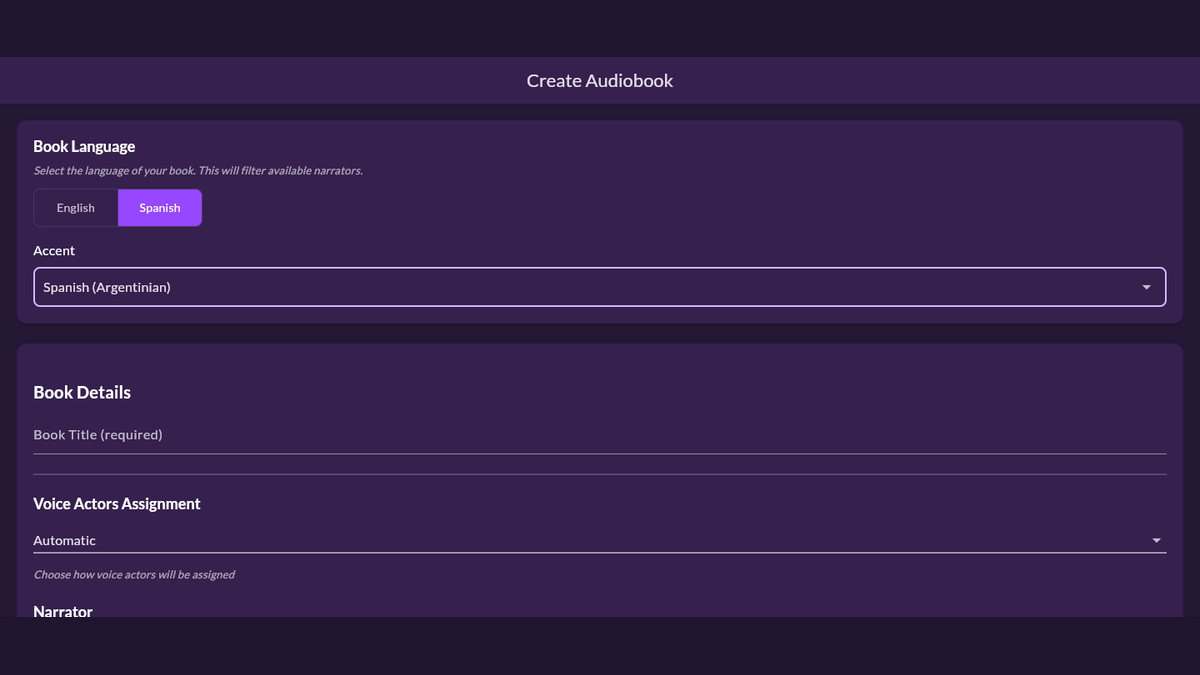
    Spanish AI audiobook generator setup in MyNarratorAI with Spanish selected, an Argentinian accent, and automatic voice assignment
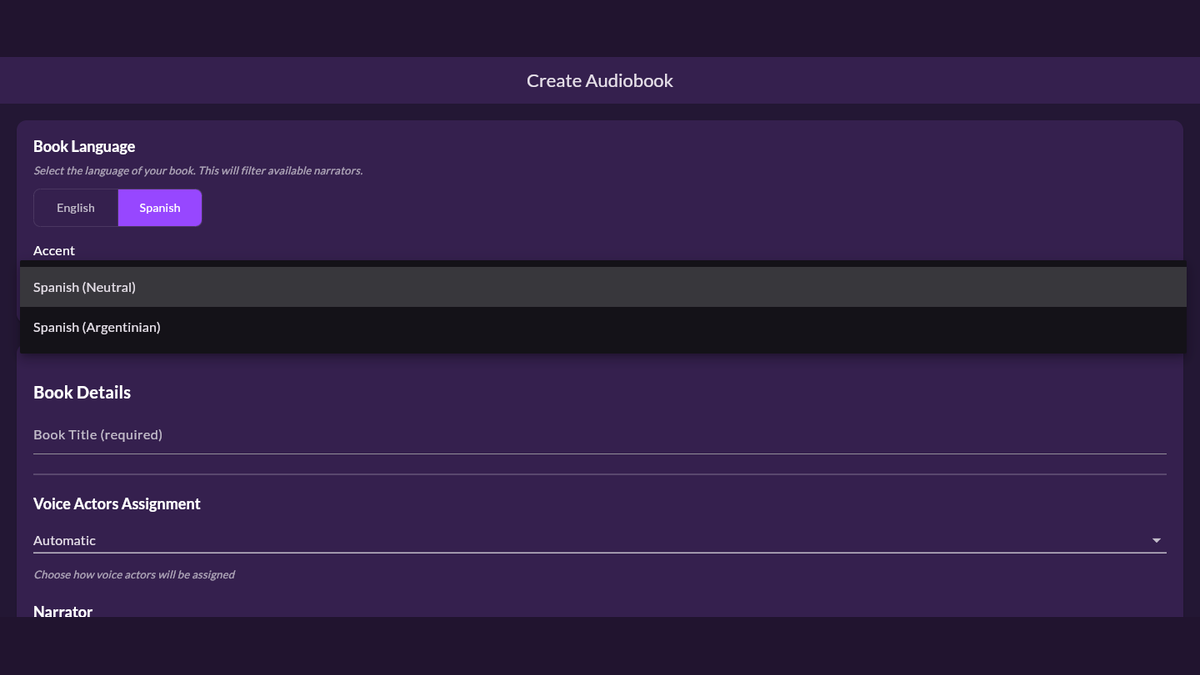
    Spanish projects use a compatible voice roster; eligible accounts can choose neutral or Argentinian Spanish before voice assignment.

    Step 1: Select Spanish before choosing a narrator

    On the Create Audiobook page, the Book Language control appears before the book details and narrator settings. Choose Spanish there first. The platform uses that choice to load compatible narrators and to send the book through its Spanish-language processing path.

    This order matters. A voice can sound good in a demo and still be the wrong choice for the text’s language. Filtering the roster first avoids accidentally building a Spanish project around an English narrator.

    Clean source text helps too. Check chapter order, headings, dialogue punctuation, and obvious scanning errors before upload. If the source came from a scanned PDF, review the extracted text particularly closely. A narrator cannot reliably repair missing punctuation or garbled words that are already present in the book.

    Step 2: Understand neutral and regional Spanish voices

    Neutral Spanish is the default Spanish accent path. MyNarratorAI also supports an Argentinian Spanish option when that optional feature is enabled for the account and a compatible narrator is available. When offered, the accent choice filters the narrator roster again so the selected voice and requested accent stay aligned.

    Regional voice selection is not a magic translation or dialect rewrite. The original Spanish text remains authoritative; the selected narrator affects how that text is spoken. Vocabulary, character background, and regional phrasing should already match the audience you want to reach.

    The safest casting rule is simple: choose the voice you want listeners to hear, then verify it with real chapters. A short demo is useful, but names, dialogue rhythm, and long sentences reveal much more about an audiobook voice.

    Step 3: Build a full-cast Spanish audiobook

    The Voice Actors Assignment setting offers three paths. Full Cast explicitly requests distinct character voices. Automatic lets the book-analysis stage decide whether full-cast processing applies, while Narrator Only keeps the book on the single-narrator path. In a full-cast project, the book narrator remains separate from character voices, and recurring characters can keep distinct voices across chapters.

    Full-cast audio is especially useful in conversation-heavy fiction because distinct voices can make speaker changes easier to follow. It can also make a large cast easier to distinguish. It does not remove the need for review: ambiguous dialogue, aliases, unusual formatting, or a character described late in the book can still require a human decision.

    If a particular role needs a voice that is not in the standard roster, you can also create a reusable custom narrator from a clear sample you own or have permission to use. Our guide to custom voice actors for full-cast audiobooks explains that workflow and the consent considerations.

    Step 4: Review the Spanish audio, not just the settings

    Listen to at least one narration-heavy section and one dialogue-heavy section before deciding that the cast is finished. Pay attention to:

    • Names, invented terms, abbreviations, and place names.
    • Dialogue assigned to the wrong character.
    • Two important characters whose voices are too similar.
    • A narrator or character voice that does not fit the intended region.
    • Chapter openings and transitions that sound abrupt.

    Reviewing a complete chapter is more informative than replaying only a few isolated lines. Audiobook quality depends on continuity: the same character should remain recognizable when they return later.

    Step 5: Correct the audiobook when Create Version is available

    A first generation does not have to be the final one. Create Version is currently available to Standard, Pro, Ultimate, and Admin accounts. Its workspace groups corrections by intent: you can change the narrator or a character voice, add or remove a dialogue assignment, replace a mispronounced word with a speakable respelling, merge duplicate character identities, or adjust a character’s narration speed.

    For a complete correction walkthrough, see how to fix an AI audiobook without starting over.

    For a pronunciation problem, select the word from the chapter text, enter how it should be said, and preview it in the line’s current voice. When the preview sounds right, review the proposed change and choose where the corrected version should start. This creates a new audio version; it does not overwrite a single word inside the existing audio file.

    That versioned approach protects the original while letting you concentrate regeneration on the relevant chapter range. Unchanged audio chunks can be reused where possible, but you should still listen to the new version before selecting it for regular playback.

    Who is this workflow for?

    Spanish audiobook creation can be useful for independent authors, small publishers, educators, and readers converting books they are allowed to use. It is also a practical way to test how a dialogue-heavy manuscript works in audio before planning a traditional studio production.

    Always confirm that you control the audiobook rights to the text and have permission for every custom voice sample. For public-domain material, verify the legal status in the country where you will use or distribute the result; public-domain rules vary by jurisdiction.

    Start with one representative chapter

    The fastest way to evaluate a Spanish cast is to start with a manageable book or a few representative chapters. Choose Spanish, select a compatible narrator, generate the first version, and listen for the choices that matter to your audience. Then refine only what needs attention.

    Start a Spanish AI audiobook generator project in MyNarratorAI with a book you are authorized to use.

    Frequently asked questions

    Can MyNarratorAI create a Spanish audiobook with several voices?

    Yes. Choose Full Cast to request separate voices for narration and character dialogue, or use Automatic to let the analysis stage decide whether full-cast processing applies. The first-pass result still depends on the source text, so review the generated audio and, when Create Version is available to your account, correct ambiguous assignments as needed.

    Does it support an Argentinian Spanish voice?

    An Argentinian Spanish option is available when the account’s optional-feature access permits it and a compatible narrator is available. Neutral Spanish remains the default.

    Can I correct a Spanish name that is pronounced incorrectly?

    Yes, when your account includes Create Version. The pronunciation-fix flow lets you preview a speakable replacement in context, then create a new audio version beginning at the selected chapter or from Chapter 1.

    Related articles


    Published on August 23, 2026.

  • AI Story Generator Audiobook: Write, Cast, and Listen

    AI Story Generator Audiobook: Write, Cast, and Listen

    An AI story generator audiobook workflow closes the gap between imagining a story and hearing it performed. In MyNarratorAI, you can describe the story you want, guide its beginning and ending, choose English or Spanish, select a narrator, and send the completed story directly into the audiobook pipeline. You do not need to draft a separate manuscript and upload it later.

    The useful part is not simply generating more text. It is deciding which details you want to control and which ones you want the AI to propose. MyNarratorAI keeps those choices in one creation form, so your premise, mood, character direction, narration, and optional enhancements start from the same brief.

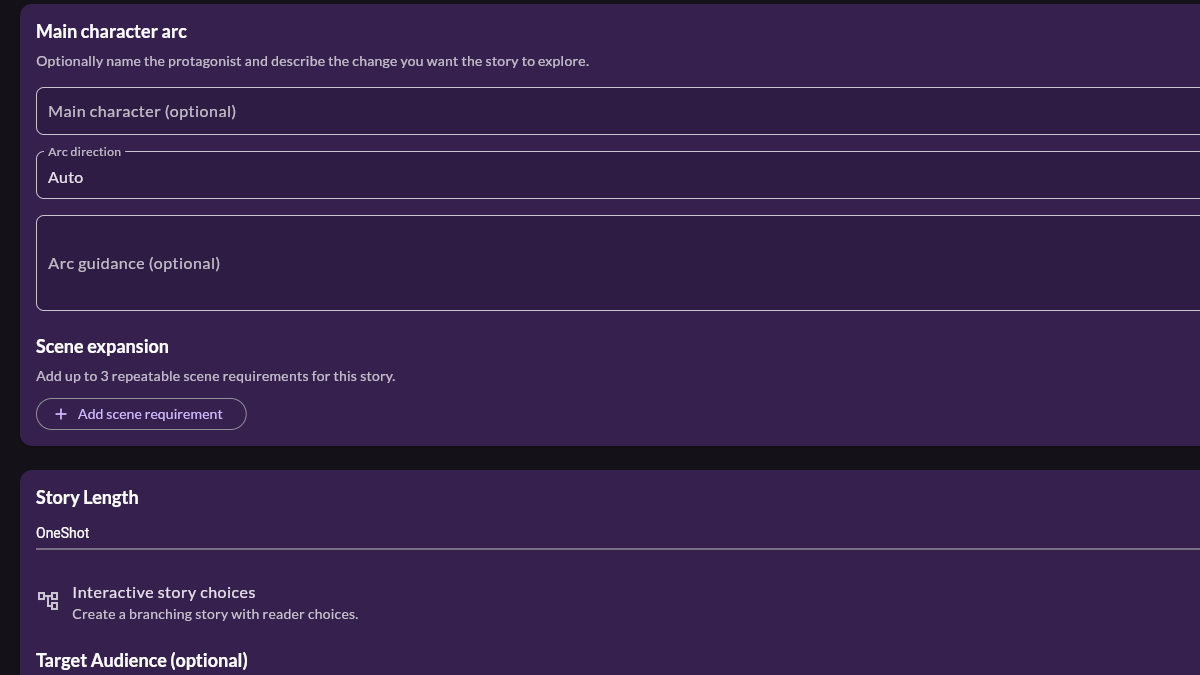
    AI story generator audiobook setup in MyNarratorAI with character arc, scene expansion, story length, and interactive story choices
    The Story form includes character-arc and story-length controls; eligible accounts may also see scene expansion and interactive choices.

    How the AI story generator audiobook workflow works

    The process has three broad stages: define the story, review the setup, and generate the book. MyNarratorAI first uses your form choices to build a story structure. It then expands that structure into the chapter plan available for your selected story length, writes the story, and packages the result as an EPUB. The completed EPUB enters the same audiobook-processing workflow used for uploaded books.

    That final handoff matters. The text is not left in a chat window for you to copy and reformat. It becomes a book in your MyNarratorAI library, where the platform can prepare narration and character dialogue for audio. For a closer look at that downstream process, read How an AI audiobook generator creates full-cast audio.

    1. Choose English or Spanish before choosing a voice

    Start with Story Language. The current story creator supports English and Spanish, and your selection filters the narrator roster to voices compatible with that language. Choose the language in which you want the story written and performed; it is a production setting, not merely the language of the interface.

    Next, review the current narrator and use Change Narrator if you want a different voice. This selection establishes the narration voice for the resulting book. The audiobook pipeline can then identify character dialogue and prepare the broader cast from compatible voices. If you want to bring an authorized voice of your own into future projects, see the guide to creating custom voice actors.

    2. Write a strong Story Basics prompt

    The Story Prompt is the clearest place to state the core idea. A practical prompt names the protagonist, their immediate problem, the setting, and the kind of change or decision the story should explore. For example, you might request a mystery about a night-shift archivist who discovers that one catalogued recording has not happened yet.

    You do not need to prescribe every event. Add only the details you care about, then let the story generator fill the open space. The form treats your non-empty story fields as instructions to preserve, while blank fields can be proposed by the AI.

    Use the preview when you want a collaborative first pass

    Let AI fill this (preview & edit) drafts the story structure before full generation. It can propose details such as a title, premise, audience, genres, moods, and character direction. Those results are written back into editable fields, so you can revise them rather than accepting an opaque plan. Keeping a field preserves it; clearing a filled field asks the system to decide it again when you generate.

    This is a useful checkpoint for catching a premise that is too broad, a mood that does not fit, or a title that reveals too much. It is still generative software, so review the structure as a creative draft rather than a guarantee of perfect interpretation.

    3. Direct the beginning, ending, and character arc

    The Story Flow controls are for decisions that should not be left to chance:

    • How the story starts can establish the opening situation or first image.
    • How the story ends can pin the destination without scripting every step toward it.
    • Time Span tells the story whether events unfold over one evening, a season, or many years.

    You can also name the main character and choose the intended direction of their arc, with space for your own guidance. Story Characteristics add another layer: author feelings, tags, genres, and moods help describe the reading experience you want. Target Audience and Writing Style further shape how the story is told.

    Select a story length from the options available to your account. A focused idea often benefits from a shorter format; a premise with several turning points needs more chapter space. The available lengths and optional controls are governed by current feature access, so use what the creator displays rather than assuming every account has the same menu.

    4. Add optional media deliberately

    If your feature access includes them, AI Enhancements can control character images, scene images, sound effects, and music. Each visible control offers frequency choices from none to more frequent use. These are optional layers, not requirements for creating the story or audiobook.

    Start conservatively. Images can help listeners follow a character or setting in the visual player, while carefully placed effects or music can strengthen a scene transition. More media is not automatically more immersive. Match the frequency to the story, and leave a category set to none when the prose and performance should carry the moment.

    5. Generate, listen, and review the result

    When the setup reflects your intent, select Generate Story. MyNarratorAI builds the story, creates its book artifact, and moves it into audiobook creation. Generation and audio rendering take time because the system is producing a structured book and audio assets, not returning a single chat response.

    Listen to the finished result with the same care you would give a human first edit. Check character names, dialogue handoffs, pacing, and pronunciation. AI can reduce the mechanical work between idea and audiobook, but you remain the editor who decides whether the story and performance are ready to share.

    Use prompts and source material you created or have permission to adapt. Avoid asking the system to reproduce a living author’s work or copyrighted characters you do not control. If you plan to distribute the audiobook, confirm that you have the necessary rights to its text, voices, and any uploaded reference material.

    Ready to move from an idea to something you can hear? Start an AI story generator audiobook in MyNarratorAI with a short, specific story brief.

    Related Articles


    Published on August 23, 2026.

  • AI Audiobook Generator: Turn Any Book Into Full-Cast Audio

    AI Audiobook Generator: Turn Any Book Into Full-Cast Audio

    Looking for an AI audiobook generator that does more than read text aloud? The best results come from treating audiobook creation as a production workflow: prepare the book, choose voices deliberately, keep the narrator separate from characters, and review the finished audio before sharing it. That is especially true for fiction, memoir, education, and public-domain classics where listeners expect pacing, clarity, and distinct speakers.

    MyNarratorAI is built around that workflow. Instead of producing one flat text-to-speech file, it helps convert ebooks into full-cast audio with narrator and character voices, optional custom voice actors, and controls for fixing assignments when a book needs creative direction.

    What Is an AI Audiobook Generator?

    An AI audiobook generator converts written text into spoken audio using text-to-speech models. Simple tools take a pasted passage and render it with one voice. More complete audiobook tools handle longer files, chapter structure, pronunciation, character dialogue, and audio review.

    For short articles, a single voice may be enough. For books, the requirements are different. A useful audiobook generator should help you:

    • Upload or import long-form content such as EPUB files.
    • Preserve chapters so listeners can navigate naturally.
    • Separate narration from dialogue.
    • Assign distinct voices to recurring characters.
    • Regenerate or correct sections that need better pacing, tone, or voice matching.
    • Export audio in a format that is easy to listen to and share.

    Why Full-Cast Audio Matters

    Many AI narration tools focus on speed: upload text, pick one voice, download an MP3. That can work for straightforward nonfiction, but it often falls short for dialogue-heavy books. Fiction listeners need to understand who is speaking without checking the page. A full-cast approach makes that easier by giving the narrator and major characters separate voices.

    Distinct voices also reduce listening fatigue. When every character sounds the same, the listener has to work harder to follow a scene. When the voice assignments are clear, the story feels more natural, especially in conversations, courtroom scenes, fantasy parties, mysteries, and serialized fiction with returning casts.

    Step 1: Prepare the Ebook

    Before using any AI audiobook generator, open the ebook and check the basics. Confirm that chapters are in the right order, front matter is not mixed into the first chapter, and dialogue punctuation is readable. EPUB files are usually easier to process than a scanned PDF because the text and chapter structure are already available.

    If you are converting a copyrighted book, make sure you have the rights to create the audio version. Public-domain books are useful for testing because they let you experiment with narration, pacing, and voice assignments without licensing uncertainty.

    Step 2: Choose a Narration Style

    The right narration style depends on the book. A business guide may only need one clear narrator. A novel may benefit from a narrator plus several character voices. A children’s story may need brighter voices and more expressive pacing. MyNarratorAI lets you start with AI-assigned voices, then adjust the cast when the automatic choice is not the right creative fit.

    For the best result, think of voice selection as casting. Match voice age, tone, accent, and energy to the role. A mentor, villain, child, detective, or comic side character should not all sound like the same generic speaker.

    Step 3: Use Custom Voice Actors When the Cast Matters

    Stock AI voices are convenient, but some projects need a more specific sound. With custom voice actors, you can create a reusable voice from a short sample you have the right to use. That can help authors and creators keep a consistent voice for a main character across a series, match a narrator to a brand, or build a cast that feels less generic.

    Voice cloning should be handled responsibly. Use voices you own, have recorded yourself, or have clear permission to use. Responsible voice sourcing protects creators and avoids problems later when the audiobook is shared publicly.

    Step 4: Review the Audio Like a Producer

    AI audiobook generation is fastest when the first pass gets you close and the editor only fixes what matters. After generation, listen for the issues that listeners notice first:

    • Wrong speaker in dialogue-heavy scenes.
    • Robotic pacing or unnatural pauses.
    • Names, places, or invented words pronounced incorrectly.
    • Chapter breaks that feel abrupt or misplaced.
    • Repeated voices assigned to characters who should be distinct.
    • Volume or clarity problems that make long listening tiring.

    The goal is not to micromanage every sentence. The goal is to make the audiobook easy to follow and pleasant to listen to for full chapters at a time.

    When Should Authors Use AI Audiobook Creation?

    An AI audiobook generator is most useful when the alternative is no audiobook at all, or when you need to test audio demand before investing in a traditional studio production. Independent authors can create preview chapters, publishers can revive backlist titles, educators can make assigned reading more accessible, and readers can listen to public-domain books with a cast that fits their taste.

    Human narration is still the premium choice for many commercial releases, especially where performance nuance is the core product. AI narration is strongest when speed, accessibility, iteration, and voice customization matter most.

    AI Audiobook Generator Checklist

    • Input: Use clean EPUB text whenever possible.
    • Structure: Preserve chapters and remove unwanted front matter.
    • Casting: Assign a narrator and distinct voices for major characters.
    • Rights: Use books and voice samples you are allowed to convert.
    • Review: Listen for speaker errors, pacing, and pronunciation.
    • Iteration: Regenerate only the sections that need improvement.

    Start With a Book You Can Evaluate

    If you are new to AI audiobook creation, begin with a short book or a few chapters. That gives you a realistic sense of voice quality, chapter flow, and editing effort before processing a long novel. MyNarratorAI is designed for that kind of practical workflow: upload a book, generate audio, review the cast, adjust voices, and keep improving the result.

    Try MyNarratorAI to turn an ebook into a full-cast audiobook and experiment with custom voices, character narration, and AI-powered audio creation.

    FAQs

    Can AI turn an EPUB into an audiobook?

    Yes. An AI audiobook generator can convert EPUB text into spoken audio, and a book-focused tool can preserve chapters while assigning narrator and character voices.

    Is AI audiobook narration good enough for fiction?

    It can be, especially when the workflow includes distinct character voices and review. Dialogue-heavy fiction usually needs more casting and quality checks than simple nonfiction.

    Can I clone a voice for an audiobook?

    Yes, if the platform supports custom voices and you have the right to use the voice sample. Always get permission before cloning someone else’s voice.

    Related Articles


    Published on June 13, 2026

  • Create Custom Voice Actors for Full-Cast AI Audiobooks

    Create Custom Voice Actors for Full-Cast AI Audiobooks

    Custom voice actors give an audiobook creator another option beyond the built-in voice library: a reusable, account-linked voice based on a recording that the creator has permission to use. In MyNarratorAI, you can upload short samples, describe the voice with a few required fields, listen to generated speech, and use an eligible voice in a full-cast audiobook. This guide explains what the feature currently does, what it does not promise, and how to prepare a useful source sample.

    When the feature is enabled for your account, open MyNarratorAI custom voice actors to create and manage your voices. Access is checked by the app and API, so the creation page may not be available for every account or at every point in a rollout.

    How custom voice actors work in MyNarratorAI

    MyNarratorAI does not turn an upload into a downloadable voice model. It stores the permitted source samples with a voice-actor record and uses an uploaded sample as the reference when the text-to-speech system renders that voice. One sample must be marked as the main sample. That main upload is also the source used when MyNarratorAI creates the narrator’s generated demo clips.

    The uploaded source and the generated demo have different jobs. The source is the recording used as the voice reference. The demo is newly generated speech that lets you hear a result from a configured production engine. A demo is not a replacement source, and its presence is not an automatic quality certification.

    A user-created voice is tied to its creator. Other regular users cannot select a private custom narrator unless it has explicitly been shared. Language, accent compatibility, availability, ownership, and other voice-selection checks still apply whenever an audiobook is created or regenerated.

    How to create a custom voice actor

    1. Confirm that you may use the voice. Upload your own voice or a voice for which you have explicit permission. The creation form displays a warning about this requirement; it is not merely a recording tip.
    2. Choose the language. The current form offers English and Spanish. This setting is part of the voice’s metadata and helps keep the voice within compatible audiobook selections.
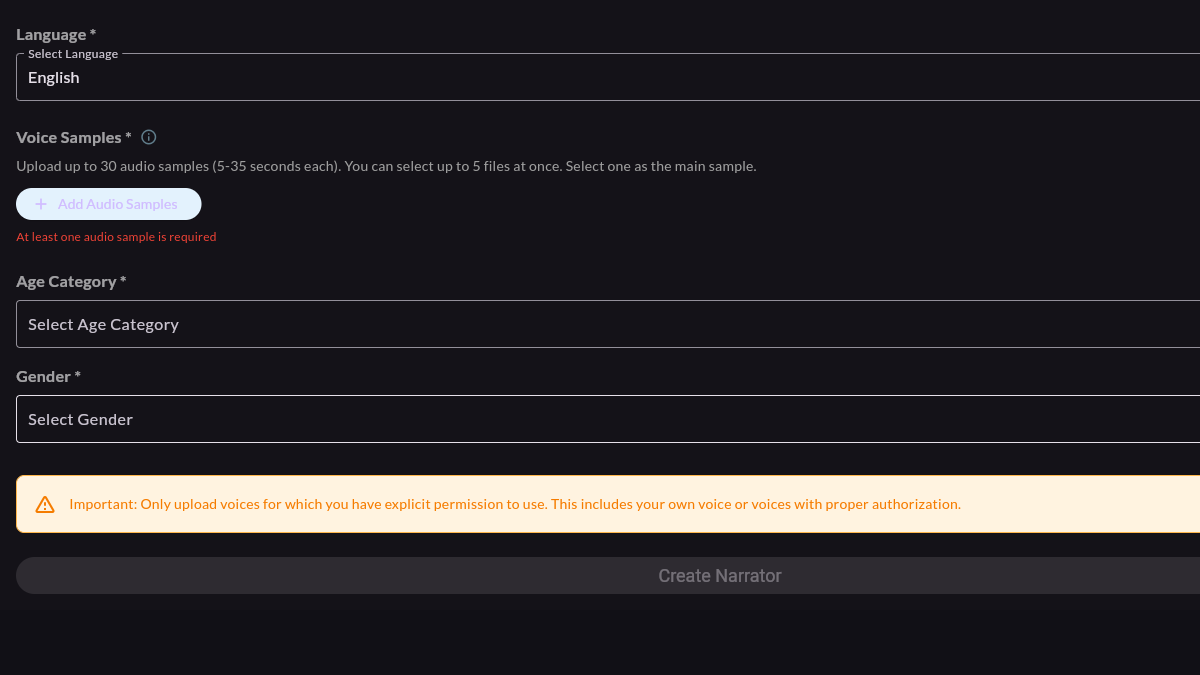
    3. Add voice samples. You can keep up to 30 samples on a custom narrator. The creation screen asks for samples from 5 to 35 seconds each and lets you choose up to five files in one upload action. At least one sample is required.
    4. Select the main sample. Exactly one upload is the main reference. Pick the take that best represents the voice you want the generated demo and main-sample requests to use.
    5. Set age and gender metadata. The age choices are kid, teenager, young adult, adult, and old; the gender choices in the current form are male and female. These are creator-selected fields, not claims that the platform independently verified the speaker’s identity.
    6. Test and create. The sample controls can generate speech for listening before or after creation. After you submit the form, demo processing may continue asynchronously, so a preview may not be ready immediately.
    MyNarratorAI custom voice actors form with language, voice samples, age, gender, and a voice-permission warning
    The current creation form includes language, up to 30 samples of 5–35 seconds each, uploads of up to five files at once, age and gender fields, and a warning to use only voices you have permission to upload.

    Choose source audio without inventing hard recording rules

    The form’s duration range is a product limit, not a promise that every recording inside that range will sound the same. A practical source is one in which the intended speaker is easy to hear. Background music, another speaker, heavy room noise, or strong effects can become part of what the text-to-speech engine receives as its reference. The interface points to an optional voice-isolation tool, but it does not require a studio microphone or a particular recording device.

    More uploads are optional. They are useful when you have meaningfully different takes rather than many copies of the same recording. Each sample can carry emotion, speed, and loudness labels, along with pitch-transpose and volume adjustments. You can test individual samples, change which one is main, add or delete samples, and regenerate the demo. The most reliable decision is still to listen to the generated speech and judge whether it suits the intended character or narrator.

    Use a custom voice in a full-cast AI audiobook

    Full-cast rendering assigns speech to a narrator and to eligible character voices. A custom narrator becomes part of the creator’s available voice inventory when it passes the same ownership, language, accent, enabled-state, and serviceability checks as other selectable voices. The voice-assignment system can consider creator-owned voices that match the character metadata, and compatible voices can also be chosen directly through character voice controls where those version controls are available.

    This makes a stored custom narrator useful in more than one compatible project without promising that every character will receive it automatically. You can select the same stored voice again when you want continuity, but the actual assignment is recorded per audiobook version and remains subject to the book’s settings. MyNarratorAI also keeps narrator and character roles separate so descriptive narration does not have to use the same voice as dialogue.

    What happens after you press Create

    MyNarratorAI saves the uploaded samples, creates the custom narrator, and starts generated-demo work for the configured production text-to-speech engines. Which preview the app shows is rollout-controlled. A generated preview may remain unavailable while processing is pending or if generation fails.

    This processing is different from the broad automated quality-assurance claims sometimes made about voice cloning. MyNarratorAI provides sample testing, generated previews, editable sample settings, and regeneration controls. It does not guarantee that every upload will reproduce a voice perfectly, remove noise automatically, or pass a universal naturalness score. Listen before assigning the voice to a long project, and adjust the source or sample settings when the result does not fit.

    Start with a voice you are allowed to use

    The essential workflow is simple: choose a permitted recording, stay within the form’s sample limits, mark one clear main sample, enter accurate metadata, and listen to generated speech. If custom narrator creation is available for your account, visit My Narrators to create a voice, then use compatible narrator or character controls when building your audiobook.

    Related Articles


    Originally published March 8, 2026; updated August 23, 2026.

  • Public Domain Audiobooks: Find Classics and Create Your Own

    Public Domain Audiobooks: Find Classics and Create Your Own

    Public domain audiobooks offer two useful ways to enjoy classic books: listen to an existing recording, or start with a public-domain ebook and create a new audiobook. The right path depends on whether you want something ready to play or a narration built from a source book you select.

    MyNarratorAI supports the second path through its public domain audiobooks library. After signing in, you can browse classic books, inspect the available edition, and send your selection into the standard audiobook-creation flow. This guide explains that current workflow and also points to established sources for ready-made recordings and source ebooks.

    Where to Find Public Domain Audiobooks

    Before choosing a website, decide what you actually need. An audiobook catalog gives you audio that has already been recorded. An ebook library gives you source text that you can read, download in an available format, or use to create a new narration when the work and edition are suitable for that use.

    LibriVox for ready-made volunteer recordings

    LibriVox is the most direct option in this list when you want an audiobook that is already narrated. Volunteers record books that LibriVox treats as public domain under its U.S.-based policy, and listeners can browse the catalog by author, title, genre or subject, and language. Because the recordings come from different volunteers, a book may be a solo reading or a collaborative project.

    LibriVox also explains that its U.S. public-domain determination does not automatically settle a work’s status everywhere. Check its public-domain information and verify the particular work in the country where you will access or use it.

    Project Gutenberg and Standard Ebooks for source books

    Project Gutenberg is useful when you need a downloadable ebook rather than a finished recording. Its catalog focuses on older works screened under U.S. copyright rules, and individual book pages provide the available reading and download formats. Project Gutenberg’s own terms advise readers outside the United States to check the rules that apply where they live.

    Standard Ebooks produces carefully formatted editions of works it believes are in the U.S. public domain. It is a helpful source when edition quality, typography, metadata, and semantic ebook structure matter to you. MyNarratorAI’s in-app information page credits Project Gutenberg and Standard Ebooks as sources behind much of its public collection.

    MyNarratorAI for creating a new narration

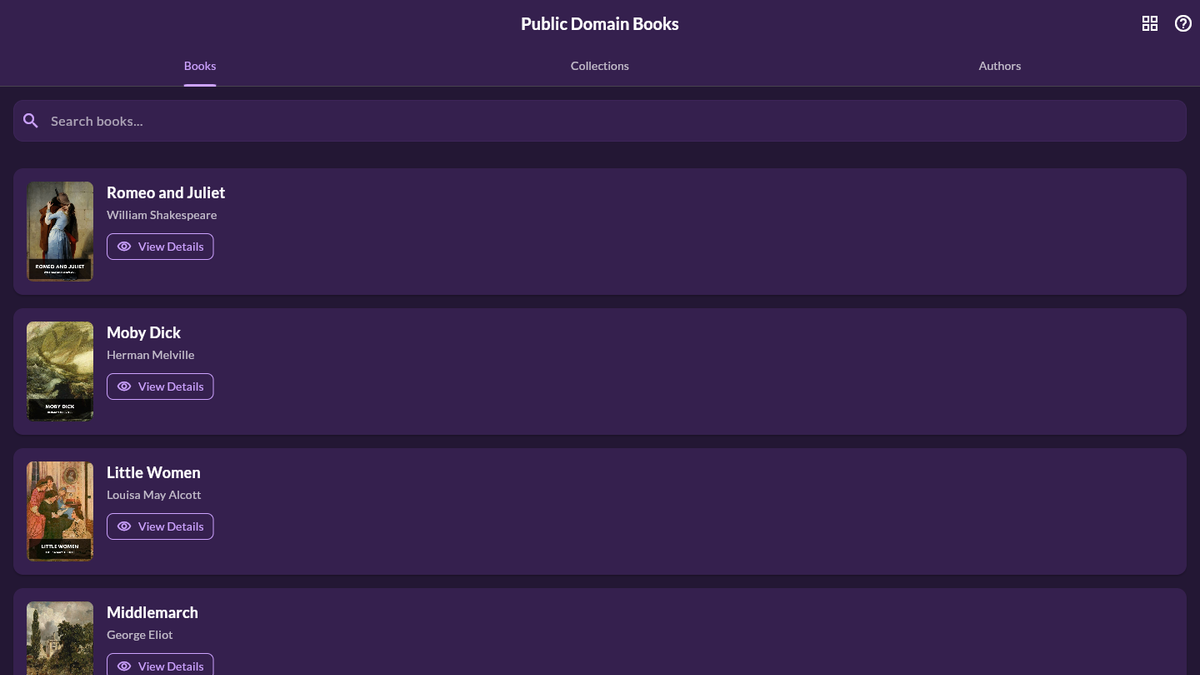
    MyNarratorAI’s public-domain library is designed as a starting point for audiobook creation. Its deployed library page includes Books, Collections, and Authors tabs. Search follows the active tab, so you can look for a title on Books, a subject grouping on Collections, or a writer on Authors.

    MyNarratorAI public domain audiobooks library with Books, Collections, Authors, search, and four classic titles
    The MyNarratorAI public-domain library includes Books, Collections, and Authors tabs, a search field, and book entries such as Romeo and Juliet, Moby Dick, Little Women, and Middlemarch.

    The visible book cards include a View Details action. That opens a dedicated page for the selected book rather than immediately starting creation, giving you a chance to review the catalog information first.

    How to Create an Audiobook From the MyNarratorAI Library

    1. Open the library. Sign in to MyNarratorAI and visit the Public Domain Books page from the Library area.
    2. Choose how to browse. Use the Books, Collections, or Authors tab. Enter a search term if you already know the title, grouping, or writer you want.
    3. Review the book details. Select View Details. The current details page can show the title, author, language, publication information, collection, and cover associated with the catalog entry.
    4. Confirm the exact work and edition. Check the source information and any rights notice that applies to the file. Do this even when the underlying story is widely described as a classic.
    5. Start creation. Select Create Audiobook From This Book. MyNarratorAI carries the selected source into the Create Audiobook page and prefills its known title and author information.
    6. Review the creation settings. Choose from the voice-assignment and narrator settings shown on the creation form, then select Create Audiobook when the form matches what you want.

    This path avoids downloading a catalog file and uploading it again. It also keeps the selected source book attached to the creation flow, which reduces the chance of accidentally starting with a different edition.

    Check Public-Domain Status for Your Jurisdiction

    “Public domain” is not a universal label that applies identically in every country. A source may screen works under U.S. rules while your location applies a different term or other conditions. The status of a famous story also does not necessarily answer every question about the exact edition, translation, introduction, illustration, or file you plan to use.

    This article is general product information, not legal advice. Before downloading, adapting, distributing, or creating audio from a work, verify the status of the exact material in your jurisdiction. Read the source site’s rights or license notice and seek qualified local guidance when your intended use requires more certainty.

    Should You Listen to an Existing Recording or Create One?

    Choose an existing recording when your priority is to begin listening immediately and the available narration suits you. LibriVox is built for that task. Choose a source ebook when you want to create a different listening version from a specific book or edition. Project Gutenberg and Standard Ebooks help with source discovery, while MyNarratorAI provides a searchable in-app route from a catalog entry to audiobook creation.

    If you want to try the creation path, browse public domain books in MyNarratorAI, open a title’s details, verify that the exact source is appropriate for your location and intended use, and continue with the supported creation settings.

    Related Articles


    Originally published July 4, 2025; updated August 23, 2026.

  • EPUB to Audio: Complete Conversion Guide

    EPUB to Audio: Complete Conversion Guide

    Turning an EPUB to audio is more than asking text-to-speech software to read every line. A useful audiobook needs sensible chapter structure, a narrator that fits the book, understandable dialogue, and a review process for names or passages that do not sound right on the first render. MyNarratorAI brings those steps into one workflow: upload the source, choose how voices should be assigned, create the audiobook, listen, and—when Create Version is available to your account—make targeted corrections in a new version.

    This guide focuses on a standard EPUB novel or nonfiction book. The same upload screen currently accepts PDF, TXT, and MOBI files as well, although each source format has different structural strengths. EPUB is often the most convenient starting point because it can contain explicit chapters and reflowable text.

    Before You Convert an EPUB to Audio

    Confirm that you can use the book

    Use a book you wrote, a work in the public domain, or material for which you have the necessary permission or license. Buying an ebook does not necessarily grant the right to reproduce or distribute an audiobook adaptation. Copyright and public-domain rules vary by jurisdiction, so this is a practical reminder rather than legal advice; ask a qualified professional when the rights are unclear.

    If the ebook is protected by digital rights management (DRM), obtain an authorized, uploadable source from the rights holder or publisher. Do not bypass DRM. For a low-risk practice project, start with a title whose status you have independently verified; our guide to finding public-domain books explains what to check.

    Inspect the source file

    Open the EPUB in an ebook reader before uploading it. Check that chapters appear in the correct order, headings are meaningful, and unusual characters display properly. Remove accidental duplicate front matter or unrelated promotional pages if you control the source. A well-structured EPUB gives the conversion pipeline clearer material to work with, but clean formatting is not a guarantee of perfect narration.

    EPUB to Audio: The MyNarratorAI Workflow

    1. Open the Create Audiobook page. Sign in and go to Upload Book.
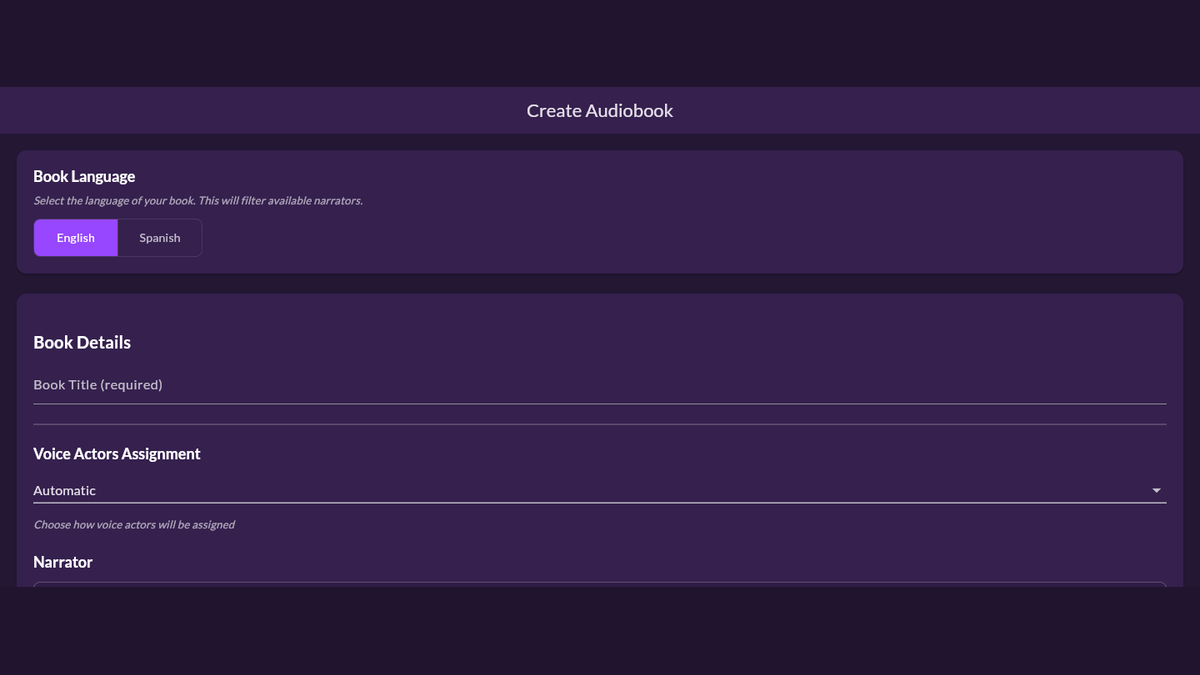
    2. Select the book language. The current full audiobook workflow supports English and Spanish. Language selection filters the narrator roster to compatible voices. For Spanish, eligible accounts may also see a choice between neutral and Argentinian Spanish.
    3. Add the title. Enter a clear book title so the project is easy to recognize in your library.
    4. Choose a voice-assignment mode. Select Automatic, Full Cast, or Narrator Only. Full Cast is the direct choice when you want dialogue routed to distinct character voices; Narrator Only keeps the performance with one narrator.
    5. Choose the primary narrator. The narrator picker is filtered by the language and, where applicable, accent selected for the book.
    6. Select the EPUB and create the audiobook. Confirm the settings, choose the file, and use Create Audiobook. Processing continues through ingestion, script preparation, voice assignment, and audio generation.
    EPUB to audio setup in MyNarratorAI with English selected and Automatic voice assignment
    The MyNarratorAI upload flow places book-language and voice-assignment controls before narrator selection.

    Some accounts also expose optional creation settings such as character images, scene images, sound effects, or music cues. Availability depends on feature access, and none of those extras replaces reviewing the spoken book itself. Start with the choices that materially affect narration: language, assignment mode, and narrator.

    What Full-Cast Conversion Does

    In a full-cast project, MyNarratorAI processes the book as a script-oriented audiobook rather than a single uninterrupted speech file. It identifies narration and dialogue, builds character information, and assigns compatible voices. That can make conversations easier to follow and give recurring characters a consistent audible identity. The broader full-cast AI audiobook guide explains that workflow in more detail.

    AI interpretation is not automatically perfect. Ambiguous dialogue can be assigned to the wrong speaker, a name can be pronounced incorrectly, or a selected voice may not suit your intent. Complex typography, footnotes, tables, and image-dependent passages can also require extra review. Treat the first completed version as a production draft to listen to, not as proof that every line is ready.

    Review the Audiobook Before You Rely on It

    Listen in chapter order and keep notes with the chapter and approximate location of each issue. Pay particular attention to:

    • character names, places, acronyms, and specialist terminology;
    • dialogue where the speaker could be ambiguous on the page;
    • voice continuity for characters who return in later chapters;
    • chapter boundaries, front matter, and unusually formatted passages;
    • sections where a visual, table, or footnote carries meaning that speech alone may not convey.

    Use both headphones and ordinary speakers for a practical review. You are listening for intelligibility and continuity, not merely whether an audio file exists. If the book will be shared with others, a separate human review is valuable because someone unfamiliar with the source may notice confusing passages that the author reads past.

    Correct Problems Without Re-uploading the EPUB

    When Create Version is available to your account and you find a problem, create a corrected version instead of rebuilding the project from scratch. Its controls can carry focused changes such as narrator or character voice updates, dialogue and text corrections, and pronunciation replacements. The original version remains available for comparison while the correction is generated into a new one.

    For a mispronounced word, select it from the audiobook’s synchronized text, enter the spelling that produces the intended sound, preview the replacement, and review the proposed version change. You can choose where the correction should begin, which matters when a name appears throughout later chapters. For voice or dialogue issues, open Create Version, record only the changes you need, review the summary, and then generate that version.

    For a step-by-step correction guide, read how to fix an AI audiobook without starting over.

    Corrections still need a listening pass. A phonetic spelling that fixes one sentence may sound different in another context, and changing a voice can affect more than the line that first drew your attention. Compare the relevant passages in the new version before considering the issue resolved. If you want to create a reusable voice from an authorized recording, see the guide to custom voice actors for full-cast audiobooks.

    A Practical EPUB-to-Audio Checklist

    • Verify your rights to use the text and obtain a lawful, DRM-free source.
    • Open the EPUB and inspect chapter order, headings, and special characters.
    • Select the correct language before choosing a narrator.
    • Choose Automatic, Full Cast, or Narrator Only based on the listening experience you want.
    • Listen to every chapter and record exact locations for issues.
    • Use a new version for targeted voice, dialogue, text, or pronunciation corrections.
    • Review each corrected passage again rather than assuming regeneration fixed it.

    Ready to test the workflow with a book you are authorized to use? Start an EPUB to audio project in MyNarratorAI, choose the simplest suitable voice setup, and plan time for a real listening review.

    Related Articles


    Originally published July 3, 2025; updated August 23, 2026.

  • How to Convert eBooks to Audiobooks With AI

    How to Convert eBooks to Audiobooks With AI

    If you want to convert eBooks to audiobooks without recording every chapter yourself, AI can prepare the text for narration and generate the spoken audio. MyNarratorAI turns a supported book file into chapters, processes the text for either narrator-only or multi-voice delivery, and shows progress as the audiobook is created.

    This guide covers the current MyNarratorAI file-upload workflow and stays with behavior verified in the current product. Before uploading a book, make sure you own the text or have permission to create an audio version of it.

    What eBook Files Does MyNarratorAI Support?

    The standard Create Audiobook upload screen accepts four source formats:

    • EPUB for reflowable eBooks with a defined reading order and chapter structure.
    • PDF for documents whose text is organized by physical pages.
    • TXT for plain-text books.
    • MOBI for compatible Mobipocket eBook files.

    These are the supported upload extensions in the current interface. A different extension is not accepted simply because another reading app can open it. If your source uses another format, prepare a supported copy before starting. The quality of the source still matters: correct chapter order, clean headings, readable text, and sensible paragraph breaks give the processing pipeline clearer material to work with.

    How to Convert eBooks to Audiobooks With AI: Step by Step

    1. Check the source file. Open the book in a reader and confirm that the chapters appear in the intended order. Remove duplicate front matter or notes that you do not want narrated. For PDFs, check for repeated headers, footers, page labels, columns, or other layout elements that could interrupt the reading order.
    2. Open Create Audiobook. Sign in to MyNarratorAI and open the upload flow. Enter the required book title, then select the book language. The current screen offers English and Spanish and uses that choice to filter the available narrators.
    3. Choose how voices are assigned. Under Voice Actors Assignment, select Automatic, Full Cast, or Narrator Only. Then review the selected narrator and use Change if you want another compatible narrator.
    4. Select the book file. In the Book File section, choose Select File and pick an EPUB, PDF, TXT, or MOBI file. The page displays the selected filename so you can confirm the correct source before submitting it.
    MyNarratorAI upload screen to convert eBooks to audiobooks with language and voice-assignment controls
    The Create Audiobook screen places language and voice-assignment controls before narrator and file selection.
    1. Create the audiobook. Select Create Audiobook. The interface first reports the file upload, then shows that the book is being set up or queued for processing. When setup is ready, it opens the book page.
    2. Follow chapter progress. Use the book page to see processing progress and the available chapters. Open completed audio and listen closely to an early chapter before treating the whole conversion as reviewed.

    Automatic, Full Cast, or Narrator Only?

    The voice-assignment setting changes how the book is prepared for speech. It is worth choosing deliberately before the upload begins.

    • Automatic lets the book-analysis stage decide whether the text should use the full-cast pipeline.
    • Full Cast explicitly requests character discovery and separate character voice assignments alongside the narrator. This is the clearest choice for dialogue-heavy fiction when you want distinct speakers.
    • Narrator Only keeps the audiobook on the single-narrator path. It is a straightforward option for essays, reference material, or any book where one continuous reading voice is preferable.

    The narrator is selected separately from the assignment mode. MyNarratorAI filters narrator choices by the language selected on the form, which helps keep the upload settings internally consistent.

    What Happens After You Upload the eBook?

    The upload is the beginning of a queued conversion process, not an instant file-format swap. MyNarratorAI validates the source, creates the book record, and extracts its readable structure. EPUB, PDF, TXT, and MOBI sources then enter the chapter-processing workflow.

    For books using the full-cast path, the script pipeline identifies characters and dialogue before voice assignment. The audio pipeline renders the prepared chapters with the selected narrator and any valid character assignments. The product is designed to keep a character’s voice consistent across the book rather than choosing a new voice independently in each chapter.

    Because the work is processed by chapter, the book page is the useful place to monitor it. A queue position may appear during setup, and chapter availability updates as processing advances. This also gives you a concrete place to check the result instead of assuming a successful upload means every source detail was interpreted correctly.

    Tips for a Cleaner Audiobook Conversion

    • Use the final manuscript. Fix duplicated passages, placeholder text, and broken chapter headings before upload.
    • Select the real source language. Narrator availability and downstream language handling depend on the English or Spanish choice.
    • Match the voice mode to the book. Use Narrator Only when one reader is intentional, Full Cast when separate dialogue voices are important, or Automatic when you want the analysis stage to decide.
    • Review an early completed chapter. Listen for unexpected headings, page furniture, character attribution, and names that need attention.
    • Keep the original source. If the extracted structure is wrong, correcting the source and creating a fresh conversion is safer than trying to compensate for a broken file later.

    Frequently Asked Questions

    Can MyNarratorAI convert every eBook format?

    No. The current standard upload flow accepts EPUB, PDF, TXT, and MOBI. Prepare a supported source file if your book is stored in another format.

    Can an audiobook use different voices for different characters?

    Yes. Choose Full Cast to request separate character voice assignments, or Automatic to let the analysis stage determine whether full-cast processing applies. Narrator Only uses the single-narrator path.

    Do I need to keep the browser open while every chapter is processed?

    The conversion runs through queued server-side processing after the upload is accepted. Return to the book page to check progress and available chapter audio.

    Ready to begin? Open MyNarratorAI’s Create Audiobook page, choose the settings that match your book, and upload a supported file you are authorized to use.

    Related Articles


    Originally published July 2, 2025; updated August 23, 2026.